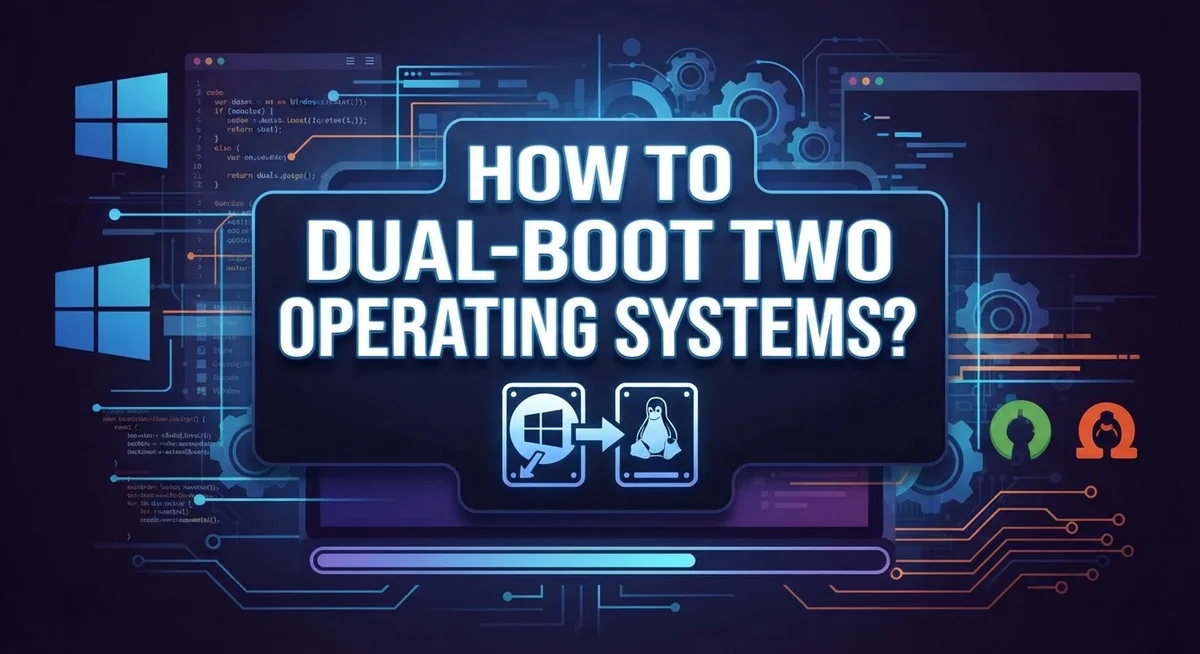
How to Dual-Boot Two Operating Systems: Complete Step-by-Step Guide
Do you want to run two operating systems on one computer? Dual booting lets you do exactly that. You can install Windows and Linux on the same machine and choose which one to use each time you start up.
This setup gives you the best of both worlds. You get Windows for everyday tasks and Linux for coding or testing. Your computer stays flexible without needing two separate machines.
Many users feel unsure about starting this process. Questions about partitions, boot menus, and installation order can feel confusing at first. The good news is that dual booting becomes simple once you understand the basic steps.
In this guide, we will walk through everything you need to know. You will learn how to prepare your disk, install each OS in the right order, and set up your boot manager correctly.
We will also cover common mistakes people make. Data loss and bootloader conflicts are two issues you want to avoid completely.
By the end, you will have a clear roadmap. You can set up your own dual boot system with confidence and keep both operating systems running smoothly side by side.
In a Nutshell
Here is a quick summary to help you understand the process fast.
-
Two systems, one computer: Dual booting installs two separate operating systems on a single machine. A boot manager lets you pick one each time you start your computer.
-
Windows first, then Linux: Always install Windows before Linux. This order helps you avoid bootloader conflicts that can stop your computer from starting properly.
-
Separate partitions matter: Each operating system needs its own disk space. Proper partition allocation keeps your files organized and prevents one system from overwriting another.
-
UEFI setup is key: Your computer’s firmware settings control how both systems boot. Learning basic UEFI configuration makes the whole process much smoother.
-
One OS at a time: You cannot run both systems simultaneously. The boot menu simply lets you choose which one loads at startup.
-
Avoid common mistakes: Skipping bootloader setup or using wrong SATA port connections often causes problems. Careful planning prevents most dual boot headaches.
What Is Dual-Booting and How Does It Work
Dual booting means installing two different operating systems on one computer. Your machine stores both systems separately. When you turn on your computer, a boot menu appears. You select which operating system you want to use that session. Only one system runs at a time.
How the process works starts with your computer’s firmware. The firmware is the software that runs before your operating system loads. It controls which system boots up first. A boot manager sits between your firmware and your operating systems. This manager displays your choices when you power on the machine.
Your hard drive gets divided into separate sections called partitions. One partition holds your first operating system. Another partition stores your second operating system. Think of partitions like separate rooms in a house. Each room keeps its own furniture and decorations. Your operating systems work the same way.
Storage allocation is critical for success. You need enough disk space for both systems to function properly. Each operating system requires its own partition. The boot manager needs to know where each system lives. Without proper partitioning, your systems cannot coexist peacefully.
The installation order matters significantly. Install your first operating system completely. Then install your second operating system on a different partition. The second installation process sets up the boot manager automatically. This sequence prevents one system from overwriting the other.
Access between systems depends on your partition setup. Some partition types allow file sharing. Others keep systems completely isolated. You choose the level of separation based on your needs. This flexibility makes dual booting powerful for different use cases.
Your computer’s UEFI settings control the booting process. UEFI stands for Unified Extensible Firmware Interface. It manages how your hardware communicates with your operating systems. Proper UEFI configuration ensures both systems boot correctly.
Pre-Installation Checklist: Partitions, UEFI, and Backups
Before you start installing two operating systems, you need to prepare your computer properly. Skipping this step causes most dual-boot failures. The preparation phase takes about 30 minutes but saves you hours of troubleshooting later.
First, back up all your data to an external drive or cloud storage. This protects your files if something goes wrong during the installation process. A complete backup means you can recover everything if needed.
Next, check your computer’s firmware type. Restart your computer and enter the UEFI settings during startup. Look for “UEFI” or “Legacy BIOS” in the firmware menu. Modern computers use UEFI, which works better for dual-boot setups.
Partition planning is essential. You need separate disk space for each operating system. If you have one large hard drive, you must shrink the existing partition to create free space. Plan for at least 50GB per operating system, though 100GB per system gives you more room for applications and files.
Check your physical storage setup too. Using separate solid-state drives (SSDs) or hard drives for each operating system provides better stability. If you only have one drive, partitioning still works, but separate drives prevent many common problems.
Disable Secure Boot temporarily in your UEFI settings. This prevents installation conflicts between the two systems. You can re-enable it after both operating systems are installed.
Write down your current settings before making changes. Take screenshots of your UEFI configuration, partition layout, and disk information. This documentation helps you troubleshoot if problems occur.
Finally, gather your installation media. Download the operating system installation files onto USB drives. Keep these USB drives separate and clearly labeled. Having everything prepared means your actual installation process goes smoothly and quickly.
Step-by-Step: Installing Windows and Linux Side by Side
Start by inserting your Windows installation media into your computer. Boot from the USB drive or DVD by pressing the appropriate key during startup (usually F12, F2, or ESC depending on your manufacturer).
When the Windows installer appears, select “Custom Installation.” This option lets you choose which partition receives Windows. Create a new partition and allocate enough space for Windows, typically 50GB or more. Complete the Windows installation fully and let your computer restart normally.
After Windows finishes, insert your Linux installation media. Boot from it using the same method as before. The Linux installer will detect your existing Windows partition automatically.
When prompted to choose an installation type, select “Something Else” or “Manual Partitioning.” This prevents Linux from overwriting Windows. Create a new partition in the unallocated space for Linux. Allocate at least 20GB for a comfortable Linux setup.
Configure your bootloader carefully during Linux installation. Most Linux installers ask where to install the boot manager. Select your primary hard drive (not a specific partition) to ensure the bootloader manages both systems properly.
Complete the Linux installation and restart your computer. You should now see a boot menu at startup. This menu lets you choose between Windows and Linux each time you power on.
If the boot menu doesn’t appear, restart and enter your UEFI settings. Look for boot order options and verify both operating systems are listed. Save your changes and exit.
Test each system thoroughly after installation. Boot into Windows first and check that all your files remain intact. Then restart and select Linux to confirm it loads correctly. Both systems should work independently without affecting the other.
Configuring the Boot Manager to Choose Your OS
After you install both operating systems, your computer needs to know which one to load when you press the power button. This is where the boot manager comes in. The boot manager is software that appears at startup and lets you choose your preferred OS.
Your computer stores boot information in a special location called the EFI partition. This partition acts like a control center. It tells your firmware which operating system to launch. When you install Linux after Windows, the Linux installer typically updates this boot information automatically.
You’ll see a boot menu at startup. This menu displays all available operating systems on your computer. Use your keyboard arrow keys to highlight the OS you want. Press Enter to select it. The boot menu usually appears for a few seconds, so you need to act quickly.
If the boot menu doesn’t show up, restart your computer and enter your UEFI settings immediately. Look for a boot order or boot priority option. Arrange your operating systems in the order you prefer. Some systems let you set a default OS that loads if you don’t make a selection.
Common boot manager issues happen when the Linux bootloader doesn’t recognize Windows properly. This occurs if you install them in the wrong order. Always install Windows first, then Linux. Linux’s bootloader is more flexible and detects Windows automatically.
You can also adjust boot timing in UEFI settings. Increase the boot menu delay if you need more time to select your OS. Some computers let you press a specific key like F12 or Escape to access the boot menu during startup.
Test your setup by restarting several times. Try selecting each operating system. Make sure both boot correctly and your files remain intact. Proper boot manager configuration ensures smooth switching between your two systems.
Best Practices for a Stable Dual-Boot Setup
A stable dual-boot setup requires careful planning and attention to detail. The foundation starts with proper storage organization. You should use separate physical drives or distinct partitions for each operating system. This separation prevents one OS from accidentally overwriting the other’s files.
Installation order matters significantly. Always install Windows first, then Linux. Windows bootloader can overwrite Linux’s bootloader if you reverse this sequence. This simple rule saves you from frustrating recovery situations.
Use UEFI firmware mode for your installation process. UEFI provides better security and compatibility with modern hardware. Check your UEFI settings before starting any installation. Document your current settings so you can restore them if needed.
Hardware configuration affects stability too. If you’re using multiple storage drives, connect them to the correct ports. Some users connect the Windows drive to a secondary SATA port to prevent conflicts during boot. This physical arrangement helps your system recognize both operating systems reliably.
Partition allocation requires precision. Each OS needs adequate space for its files and future updates. Linux typically needs 20 to 30 gigabytes minimum. Windows requires at least 40 to 50 gigabytes. Leave extra space for each OS to grow over time.
Test your setup thoroughly after installation. Restart your computer multiple times and select each operating system from the boot menu. Verify that all your hardware works correctly in both systems. Check that you can access your files properly.
Keep your system updated after dual-booting. Install security patches and updates for both operating systems. Updated systems run more stably and securely. Regular maintenance prevents boot problems from developing over time.
Document your partition layout and boot settings. Write down which drive contains which OS. Save your UEFI settings configuration. This documentation helps you troubleshoot issues quickly if problems arise later.
Common Dual-Boot Mistakes and How to Avoid Them
Dual booting two operating systems introduces specific risks you should know about. The most serious mistake is installing one OS directly over the other. This completely erases your first operating system and all your data. Always verify which partition you’re writing to before confirming installation.
Improper partition allocation causes many problems. You must create separate partitions for each operating system. If you don’t allocate enough space for each OS, one system won’t have room to function properly. Plan your storage carefully before you start installing anything.
SATA port configuration matters more than many people realize. When using multiple drives, connecting your Windows SSD to the wrong port can confuse your system during boot. Your motherboard manual shows which ports work best for boot priority. Take time to read this information.
Skipping bootloader configuration is another common error. Your bootloader is the program that shows the menu letting you choose which OS to load. If you don’t configure it properly, one operating system might not appear in your boot menu. During Linux installation, pay close attention to bootloader settings.
Many users forget to disconnect secondary drives during Windows installation. Windows sometimes installs its bootloader on the wrong drive, which breaks your boot menu later. A simple solution is to physically unplug your Linux drive before installing Windows.
File system compatibility creates confusion too. Windows uses NTFS while Linux typically uses ext4. This means you can’t always access files between systems easily. Understanding these limitations helps you plan your workflow better.
Test your boot menu immediately after installation. Restart your computer and verify both operating systems appear in the menu. If one OS is missing, fix this right away before you lose data or encounter bigger problems. Prevention is far easier than recovery.
Troubleshooting Boot Errors and Startup Issues
When your dual-boot system fails to start correctly, you need a systematic approach to find the problem. Boot errors stop you from accessing either operating system, so quick diagnosis matters.
The first step is entering your UEFI settings during startup. Press the designated key (usually Delete, F2, or F12) before Windows loads. Check that both your hard drives appear in the boot device list. If one drive is missing, reseat the cables or try different SATA ports. Sometimes a loose connection causes the entire drive to vanish from your system.
Next, verify your boot order in UEFI. The correct sequence depends on which OS you want as your default. If Linux won’t load, ensure the Linux bootloader ranks higher than Windows in the priority list. If Windows won’t load, check that your Windows drive appears before the Linux drive.
Startup failures often stem from corrupted boot files. Restart your computer and watch for error messages. Write down the exact text you see. Messages like “GRUB not found” or “Windows failed to start” tell you which OS has the problem. This information helps you target your fix.
If your boot menu disappeared entirely, the EFI partition may be damaged. This special partition stores startup information for both systems. Rebuilding it requires reinstalling your bootloader, which you can do from a Linux live USB or Windows installation media.
Test each operating system separately by manually selecting it from the UEFI boot menu. This reveals whether the problem affects both systems or just one. If one OS loads fine but the other fails, the issue is isolated to that specific installation.
Common culprits include loose cables, incorrect SATA port assignments, and corrupted bootloader files. Address these systematically before attempting complex repairs. Most boot errors resolve once you identify which component actually failed.
Final Thoughts
Setting up two operating systems on one computer is a rewarding project. It gives you access to different tools and environments without buying extra hardware.
Planning makes the biggest difference in success. Take time to understand your hardware before you start installing anything.
Remember the core order: install Windows first, then add Linux. This simple rule prevents most bootloader headaches right from the start.
Separate partitions protect your data and keep each system running smoothly. Never rush this step, since mistakes here can cause real problems later.
Your boot manager acts as the traffic controller for your system. Take time to configure it properly so both operating systems load without conflicts.
Mistakes happen to everyone, even experienced users. The good news is that most dual-boot problems have simple, known fixes.
Patience helps a lot during this process. If something doesn’t work immediately, walk through the steps again carefully.
Testing each operating system separately confirms your setup works correctly. Do this right after installation, before you start using either system for real work.
Keep a record of your partition layout and boot settings. This small habit saves huge amounts of time if you ever need to troubleshoot later.
Regular updates keep both operating systems secure and stable. Set a schedule to update each system, since neglecting one can create compatibility issues.
Dual booting rewards careful users with a flexible, powerful computer setup. You get the best of both worlds on a single machine.
Start with realistic expectations about the learning curve involved. Every skill you gain here transfers to future tech projects you tackle.
With the right approach, dual booting becomes a manageable skill rather than a stressful task. Take it step by step, and you’ll succeed.
Frequently Asked Questions
Can I run both operating systems at the same time?
No, you cannot run both systems simultaneously. A dual-boot setup lets you choose which OS starts when you turn on your computer. The boot menu appears at startup. You select one operating system. That system loads completely. To switch to the other OS, you must restart your computer and choose a different option from the boot menu.
What happens to my files when I dual-boot?
Your files stay separate by default. Each operating system lives on its own partition. Windows files remain in the Windows partition. Linux files stay in the Linux partition. You can access files from one OS to another, but this depends on your partition types. Some file systems work better across different operating systems than others. Plan your storage carefully before installation.
Do I need two separate hard drives?
No, but it helps. You can use one drive with multiple partitions. Each OS gets its own partition space. However, using two separate drives makes everything simpler and more stable. One drive holds Windows. The other holds Linux. This setup prevents accidents and makes troubleshooting easier.
What if I install the operating systems in the wrong order?
Install Windows first, then Linux. This order matters because Linux bootloader can detect Windows. Windows bootloader cannot detect Linux easily. If you install them backwards, you may lose your Windows boot option. You would need to reinstall everything to fix the problem. Always start with Windows.
How do I choose which OS to use when I restart?
A boot menu appears during startup. You see options for each operating system. Use your keyboard to highlight your choice. Press Enter to select it. The system then boots into that OS. This menu is your gateway to either system.

Dillip is the founder and editor of ImageScaleLab.com, a passionate tech enthusiast who loves breaking down complex gadgets and accessories into simple, honest reviews and buying guides. With years of hands-on experience exploring the latest in tech, he is dedicated to helping readers make smarter, more confident purchasing decisions.