
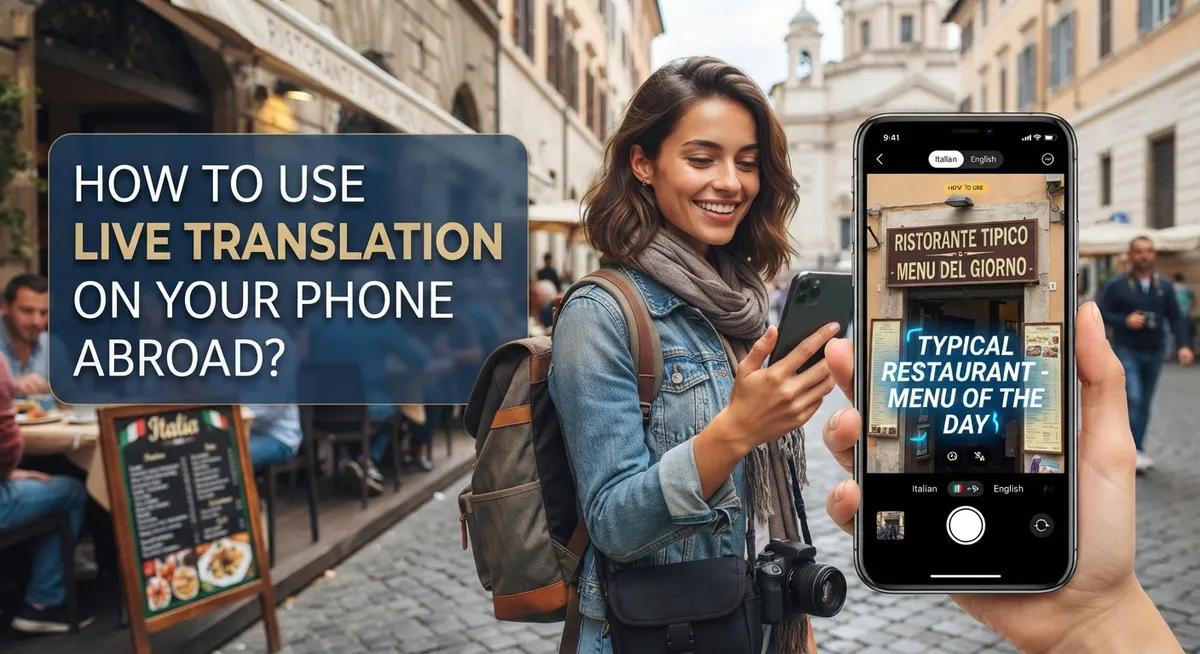
How to Use Live Translation on Your Phone Abroad?
Picture this. You land in a new country. The signs make no sense. Someone speaks to you and you just smile and nod.
That awkward moment is becoming a thing of the past. Live translation on your phone can now break down language walls instantly.
Your iPhone or Pixel phone already has this power built in. It can translate calls, messages, and even face to face chats in real time. You do not need extra gadgets or complicated setups.
This guide shows you exactly how to use these tools. We will walk through live translation on iPhone using Apple Intelligence. We will also cover Pixel’s Live Translate feature.
You will learn how to translate phone calls and text messages. We will show you how to use your camera to read menus and street signs.
Plus, we share smart tips to avoid common mistakes. Think forgetting to download language packs or misusing speech features in public.
By the end, you will feel confident exploring any country. Your phone will become your personal translator. No language barrier will stop you again.
In a Nutshell
Here’s the quick rundown before you dive in:
-
iPhone users can turn on Live Translation right inside the Phone app. Just tap the More button during a call and select the feature.
-
Pixel owners already have this tool ready to go. Check Settings, then System, then Live Translate to make sure it’s switched on.
-
Download language packs early. Do this before you leave home so translation still works without internet abroad.
-
Use your camera to translate menus, signs, and other text on the spot. Turn on “show detected text” in your camera settings first.
-
Let locals type their replies when possible. This keeps conversations smooth and avoids mixed signals.
-
Save voice translation for important moments. Overusing it in casual chats can feel awkward for the other person.
These simple steps help your phone work as a real time translator. You get a smoother travel experience without fumbling for words in a new country.
What Is Live Translation and How Does It Work?
Live translation is real-time language conversion that happens instantly on your phone. Your device listens to what someone says, converts it to your language, and speaks it back. This technology works both ways, so the other person hears your response in their language too.
The process relies on artificial intelligence and machine learning. Your phone’s AI analyzes speech patterns, grammar, and context to deliver accurate translations. It does not just swap words around. Instead, it understands meaning and adapts to how people actually speak.
Your phone handles translation through several methods. For phone calls, the app converts audio in real-time while you talk. For text messages, it translates written words instantly. Your camera can also read signs, menus, and documents and translate them on the spot.
The technology works offline if you prepare ahead. Download language packs before you travel. These files let your phone translate without using data or WiFi. This matters because internet connections abroad can be unreliable or expensive.
Live translation supports multiple languages simultaneously. You can have conversations between three or more people speaking different languages. Each person hears everything in their own language. This makes group conversations possible without confusion.
The system learns from context. If someone uses slang or local expressions, the AI adapts. It recognizes when you are in a restaurant versus a hospital and adjusts terminology accordingly.
Accuracy improves with clear speech and good audio. Background noise can reduce translation quality. Speaking slowly and directly helps your phone understand better. The technology works best for straightforward conversations rather than highly technical discussions or poetry.
Before You Fly: Preparing Your Phone for Offline Translation
Getting your phone ready for offline translation before you leave home is smart planning. You want your device working even when internet is spotty or unavailable.
Start by checking which languages you need. Open your phone’s settings and find the translation or language section. Most phones let you download language packs directly to your device. These packs contain the data your phone needs to translate without relying on internet connection.
For iPhone users, go to Settings, then select General, and look for Language and Region options. You can add multiple languages here. Download each language pack while connected to WiFi at home. This takes just a few minutes per language.
Pixel phone owners should navigate to Settings, then System, then Languages and input. Select each language you plan to use abroad and download the offline pack. Make sure you have enough storage space on your device before starting this process.
Check your storage before downloading. Language packs vary in size, but multiple packs can use several gigabytes. Delete old photos or unused apps if needed to free up space.
Test your downloads by opening the camera app and pointing it at text. Enable the “show detected text” feature in your camera settings. Try translating something simple to confirm everything works properly.
Don’t wait until the last minute to do this. Download your language packs at least a week before your trip. This gives you time to troubleshoot any issues while you’re still home with reliable internet access.
Your phone will now work as a translator anywhere, even in remote areas without data coverage. You’re ready to communicate confidently no matter where you travel.
Step-by-Step: Setting Up Live Translation on iPhone
Your iPhone has a built in live translation feature that works right inside the Phone app. Here’s how to turn it on and use it during calls.
Open the Phone app on your iPhone. Start a call with someone who speaks a different language. Once the call connects, look for the “More” button, usually shown as three dots at the bottom of your screen. Tap this button to see additional options.
You’ll see “Live Translation” listed among the call options. Tap it to activate the feature. Your iPhone will ask you to select the language you want to translate from and the language you want to translate to. Choose both languages from the dropdown menus.
The translation starts automatically once you’ve selected your languages. You’ll see text appear on your screen showing what the other person is saying in your chosen language. Your speech also translates for them in real time.
During the call, speak naturally. The system works best with clear audio and moderate speaking speed. Pause between sentences to give the translation a moment to process. This helps accuracy.
If the translation seems unclear, you can repeat what you said. The system learns from context during your conversation, so accuracy often improves as you talk longer.
For the best experience, make sure you’re on a strong internet connection. While some offline translation works, live call translation performs better with data. Keep your iPhone updated to the latest iOS version, as Apple regularly improves this feature.
Test this feature at home before traveling. Make a practice call with a friend to see how it works. This gives you confidence when you actually need it abroad.
Step-by-Step: Setting Up Live Translation on Pixel and Android
Pixel phones come with live translation built into the system. The feature activates through your Settings app, making setup quick and straightforward.
Start by opening Settings on your Pixel device. Tap System, then look for Live Translate in the menu. You’ll see a toggle switch next to the feature name. Switch it on to enable live translation across your phone.
The good news? Live Translate activates by default on most Pixel models. This means you may already have it running. Check your Settings anyway to confirm the toggle is active and ready to use.
Once enabled, live translation works during phone calls automatically. When you receive or make a call, the system detects the language being spoken. Your Pixel then translates the conversation in real time on your screen.
Text-based translation also works through your camera app. Open the camera and point it at signs, menus, or written text. The camera detects text and translates it instantly without needing a separate app.
Before traveling, download the language packs you’ll need. Go to Settings, then System, then Languages and input. Select each language you want offline access to. Your phone stores these packs locally, so translation works even without internet.
Test the setup at home first. Make a practice call with a friend to see how translations appear on screen. Check if the speed and accuracy meet your needs.
Storage matters when downloading multiple language packs. Each pack takes space on your device. Delete unnecessary apps or old files to make room before your trip.
Your Pixel is now ready for real time translation abroad.
Using Camera and Text Translation for Menus, Signs, and Documents
Your phone’s camera can translate text in real time. This feature works great for menus, street signs, and documents you encounter while traveling.
Start by opening your camera app. Point it at any text you want to translate. The app detects the words automatically. You’ll see the translated version appear right on your screen. This happens instantly without any extra steps.
Make sure you enable the text detection feature first. Go to your phone’s camera settings. Look for options like “show detected text” or “text recognition.” Turn this on before you leave home. This ensures the feature works smoothly when you need it.
For menus at restaurants, simply hold your phone’s camera toward the text. The translation pops up immediately. You can read prices, ingredients, and dish descriptions in your language. This removes the guessing game from ordering food.
Street signs and directions become clear with this tool. Point your camera at any sign, and you get an instant translation. This helps you navigate unfamiliar areas with confidence.
Documents like tickets, receipts, and forms are easy to handle. Snap a photo or point your camera at the document. The translation appears on screen. You understand what you’re signing or what information is required.
The camera translation works offline if you downloaded language packs beforehand. This means you don’t need internet connection to translate signs and menus. However, some phones may offer better results with an active connection.
Practice this feature at home first. Point your camera at different types of text. Get comfortable with how quickly it works. This preparation makes your trip smoother when you actually need fast translations in unfamiliar places.
Translating Calls, FaceTime, and Text Messages in Real Time
Live translation during calls, FaceTime, and text messages works through your phone’s built in AI technology. The system listens to what the other person says and instantly converts it to your language.
When you’re on a phone call, both people speak naturally in their own language. Your phone translates the incoming voice in real time so you understand everything. The other person hears their language translated too. This happens automatically without any delay.
FaceTime calls use the same live translation feature. Start your video call as normal. Then tap the translation option from your call menu. Select both languages, and the system handles the rest. You can see text translations appear on screen while speaking.
Text message translation works differently. When someone sends you a message in another language, your phone recognizes this. You’ll see an option to view the translation right in the conversation. You can read the original and translated versions side by side.
For the best results, speak clearly and pause between sentences. This helps your phone understand what you’re saying. Avoid background noise when possible. If the translation seems wrong, repeat yourself slowly.
One important tip: allow the other person to type responses when voice translation feels awkward. Sometimes written text translates more accurately than speech. This is especially helpful in formal or important conversations.
Download language packs before your trip. This ensures translation works even without internet connection. Test everything at home first so you feel confident using it abroad. Practice a few calls with friends who speak different languages. This builds your comfort level before you travel.
Best Practices and Etiquette for Using Translation Tools with Locals
When using live translation with locals abroad, respect matters more than speed. Start conversations by explaining you’re using a translation tool. Most people appreciate honesty and understand technology helps bridge language gaps.
Let locals know they can speak at their natural pace. They don’t need to shout or speak slowly. Your phone handles real conversation speeds just fine. This makes interactions feel more natural and genuine.
Give people choices about how to communicate. Some prefer speaking while others feel more confident typing. Offer both options without pressure. If someone seems uncomfortable with voice translation, suggest they write their response instead. This small gesture shows you respect their comfort level.
Avoid translating every single word in casual chats. Use the tool for important details like directions, prices, or medical information. For friendly small talk, sometimes gestures and simple words work better. This effort shows genuine interest in connecting.
Never translate private conversations without permission. Always ask before using the camera feature on signs or documents that belong to someone else. Privacy matters in every culture.
Be patient with awkward moments. Translation sometimes creates funny or confusing results. Laugh together about these moments. They often become the best travel memories.
Show gratitude often. A simple “thank you” in the local language means more than perfect translation. People remember kindness more than fluency.
Test your translation setup before relying on it in important situations. Know how your specific phone works so you feel confident using it. This preparation prevents frustration when you actually need help.
Remember: locals appreciate your effort to communicate, not your perfect translation. Your willingness to try matters most.
Common Mistakes and Troubleshooting Tips
Live translation tools are powerful, but mistakes happen easily when you’re abroad. Understanding what goes wrong helps you use these features successfully.
The biggest mistake is not preparing before you leave home. Download your language packs while connected to WiFi. This step takes five minutes but saves you hours of frustration. Without offline packs, your translation stops working when you lose internet connection.
Many people rely too heavily on voice translation in social settings. This creates awkward moments and sometimes offends locals. Speak clearly and pause between sentences to help the AI understand you better. If voice translation feels clunky, switch to typing instead. Locals often prefer reading text over hearing robotic speech.
Another common error is ignoring the other person’s communication style. Some people feel comfortable speaking naturally. Others freeze up when they hear a translation app. Watch their reactions. If they seem uncomfortable with voice, ask if they’d rather type responses.
Technical problems happen frequently. If translation stops working, check your internet connection first. Restart your phone’s translation app. Make sure your language pack downloaded completely. Sometimes the app needs an update before it works properly.
Don’t expect perfect translations every time. Idioms, slang, and cultural references often translate strangely. When something seems odd, ask for clarification instead of assuming you understood correctly.
Test everything at home before your trip. Practice using the camera feature on menus. Try a test call with a friend. This hands-on practice prevents panic when you actually need the tool abroad.
The key is preparation plus realistic expectations. Your phone’s translation tools work best when you understand their limits and prepare properly beforehand.
Final Thoughts
Live translation makes travel easier. It helps you talk to locals without learning a new language first.
Your phone becomes a helpful travel partner. It bridges gaps between you and people who speak differently.
Preparation still matters most. Download language packs before you leave home. Test features like Live Translation on iPhone or Live Translate on Pixel while you still have WiFi.
Technology works best when you understand its limits. Translation apps sometimes miss context or tone. They cannot replace real human connection.
Use these tools as support, not a crutch. Let locals type responses when speaking feels awkward. Give people options for how they want to communicate.
Simple habits make translation smoother. Speak clearly. Pause between sentences. Avoid translating every single word during casual chats.
Respect always comes before speed. Ask permission before translating private conversations. Show patience when translations feel confusing or incomplete.
Your camera feature helps with menus, signs, and other written text. This reduces how often you need spoken translation in public settings.
Small adjustments create better experiences. Etiquette matters as much as technology. Locals notice when you make an effort to communicate respectfully.
Real-time translation continues to improve each year. Phones now handle calls, messages, and FaceTime conversations more naturally than before.
Still, no tool replaces human patience. Kindness and clear communication go a long way, even with technical hiccups.
Think of your phone as a helper, not a fix for everything. It supports your travel experience. It does not replace genuine connection.
With proper setup and realistic expectations, live translation makes your trip smoother. It helps you connect with new people and places more confidently.
Frequently Asked Questions
Does live translation work offline or do I need internet?
Live translation functions best with an active internet connection. However, you can prepare ahead by downloading language packs while connected to WiFi at home. This allows your phone to handle basic translation tasks without data when you’re in areas with poor connectivity. Download packs before departure to avoid scrambling for WiFi later.
Can I use live translation for phone calls and text messages?
Yes, live translation covers multiple communication types. You can translate incoming and outgoing phone calls in real time. Text messages also get translated automatically on compatible phones. FaceTime calls work too. The feature activates directly within your messaging and calling apps without extra steps.
Which languages does live translation support?
Most phones support 70 plus languages through their translation features. Common languages like Spanish, French, Mandarin, and Japanese are included. Less common languages may have limited support. Check your phone’s settings to see the full list before your trip. Verify your destination language is available before leaving home.
How do I translate signs and menus while traveling?
Use your phone’s camera feature for written text translation. Point your camera at a menu, street sign, or document. The text appears translated on your screen instantly. Enable “show detected text” in your camera settings before you travel. This works even in restaurants, shops, and public spaces without speaking.
Why should I download language packs beforehand?
Language packs let your phone translate without constant internet use. Downloading them at home saves mobile data abroad and prevents delays. You’ll have faster, more reliable translation when connectivity is spotty. This is especially helpful in rural areas or countries with limited data infrastructure.

Dillip is the founder and editor of ImageScaleLab.com, a passionate tech enthusiast who loves breaking down complex gadgets and accessories into simple, honest reviews and buying guides. With years of hands-on experience exploring the latest in tech, he is dedicated to helping readers make smarter, more confident purchasing decisions.


